Discord Paywalls: How to Gate Channels and Charge

Published · Updated · 4 min read
Short answer
A Discord paywall is a set of private channels that only members with a paid role can see. You build it with role-exclusive channels, then sell the role: through Discord's Server Subscriptions if you are a US owner, or through a Stripe checkout and a bot that grants the role on payment and removes it on cancellation.
| What hides a channel | Deny View Channel for @everyone, allow it for the paid role |
|---|---|
| Native paywall scope | Some channels exclusive, or the entire server |
| Native tiers | 1 to 3 paid tiers, US owners only |
| Native fee | 10% to Discord after processing fees |
| Stripe-based fee | 2.9% + 30¢ per US card charge plus the tool's fee |
Checked against the sources at the end of this article.
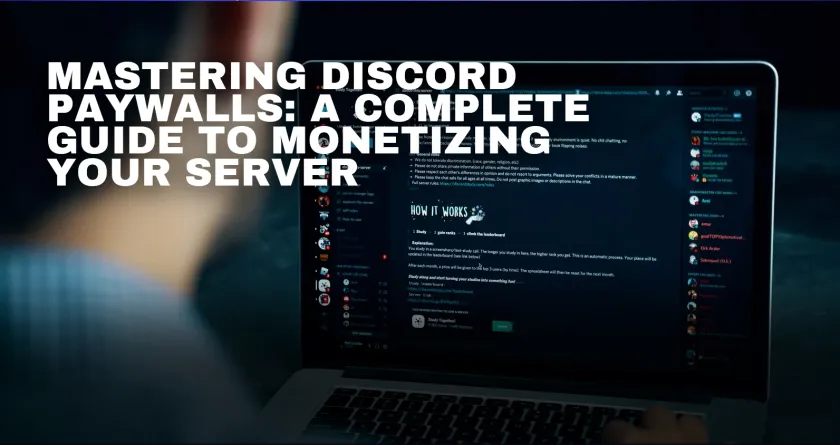
A paywall on Discord is not a separate product. It is a permission setting plus a way to sell a role. Once you see it that way, building one takes an afternoon. This guide is part of our paid Discord memberships and monetization series.
How a Discord paywall works
Every channel has permissions per role. To make a channel private, you deny the View Channel permission to @everyone and allow it for one role, for example Premium. Members without that role do not see the channel at all. Discord’s role-exclusive channel setup does this for you: create the channel, tick the role that may see it, and Discord adjusts the permissions.
The paywall is then just the question of who gets the Premium role and when they lose it.
Step 1: Decide what goes behind the wall
Sort your channels into three groups:
- Free: rules, announcements, a general chat and a taste of your best content. This is how new people judge whether to pay.
- Paid: the content people come for, such as daily analysis, templates, feedback, live sessions or archives.
- Staff: moderation and planning, visible to your team only.
Put the paid channels in their own category so permissions stay consistent, and keep the free side active. A paywall in front of an empty server converts nobody.
Step 2: Build the role and channels
- Open Server Settings > Roles and create the paid role. New roles sit at the bottom of the list, just above
@everyone. - Create the paid category and its channels, and choose the paid role as the only role with access.
- Check the result with Discord’s “View server as role” option before you announce anything.
Step 3: Sell the role
You have two choices.
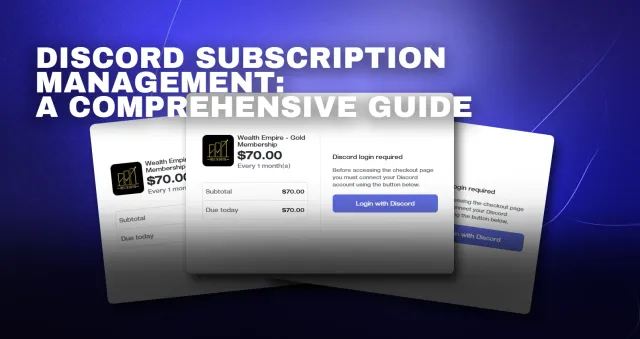
Discord Server Subscriptions. If you are a US-based owner aged 18 or over, you can make chosen channels or the whole server exclusive and sell one to three tiers inside Discord. Discord keeps 10% after processing fees and pays out monthly once you pass $100.
A Stripe checkout with a bot. A membership tool sells the role on your own branded page. Ternary, for example, takes the payment through Stripe, signs the buyer in with Discord through a signup gate, assigns the paid role straight away and removes it when the subscription ends. It works outside the US and keeps your member list in a CRM you control. Setup is covered in set up paid Discord subscriptions with Ternary.
Step 4: Price it
Choose between three models:
- Subscription: a monthly or yearly price for ongoing content. Best for communities that publish every week.
- One-time payment: a single price for lasting access, such as a course archive. Simple, but it does not fund ongoing work.
- Tiers: two or three levels with clear differences. Add them once one tier is working.
Look at what similar communities charge, then price for the value of the outcome rather than the hours you spend. Raising prices for new members while keeping early members on their original price rewards the people who backed you first.
Step 5: Keep people inside the wall
- Say exactly what each tier includes, and deliver it on a visible schedule.
- Give members a channel for feedback and answer it.
- Expect failed payments: Stripe can retry them automatically, which saves members who never meant to leave.
- Review what paid members use most each month, and move unused perks out.
Which setup fits you
Choose the native option if you are in the US and want the least setup. Choose a Stripe-based tool if you are outside the US, sell from your own website, or want member data you control. Either way, the role-and-permission design above is the same. For the bigger picture, read our pillar guide on how to monetize your Discord server and how to set up Discord memberships and subscriptions.
FAQ
Can people still see a paywalled channel's name?
Not if it is set up as a role-exclusive channel. When @everyone is denied the View Channel permission, members without the role do not see the channel in their list at all. If you want people to know premium channels exist, post a short preview or a list of perks in a free channel instead of leaving the names visible.
Is a Discord paywall allowed by Discord's rules?
Yes. Charging for access to channels is how Discord's own Server Subscriptions work, and third-party tools that sell roles are common. What you sell still has to follow Discord's Terms of Service and Community Guidelines, and content sold through Discord's own features must also meet its Monetization Policy.
What happens when a member's payment fails?
With Discord's native subscriptions, Discord handles billing and the member loses access if the subscription lapses. With a Stripe-based tool, Stripe can retry the failed payment automatically for a period you choose, and the tool removes the Discord role only when the subscription finally ends, so a single declined card does not lock someone out.