Connect Your Website, Stripe and Discord in 3 Steps

Published · Updated · 4 min read
Short answer
To sell Discord access from your own website, connect three pieces: a membership tool linked to your Stripe account and Discord server, a product that grants a Discord role, and buttons on your site that open the product's checkout page. Buyers then sign in with Discord, pay through Stripe and get their role without you doing anything.
| What your website needs | Links or buttons to each product's checkout page; no code or plugin |
|---|---|
| Payment | Stripe, into your own Stripe account |
| Identity | Buyers sign in with Discord before paying |
| US card fee | 2.9% + 30¢ per successful charge (Stripe) |
Checked against the sources at the end of this article.
Selling Discord access from your own website keeps the sale on a page you control: your brand, your words, your pricing. The challenge is connecting that page to a payment and to a role in your server. This guide does it in three steps and focuses on the website side; the account setup itself is in set up paid Discord subscriptions with Ternary. More on the topic in our Stripe and Discord hub.
Step 1: Connect the accounts
Create a Ternary account at admin.ternarydev.com/register, connect your Stripe account and add the Ternary bot to your Discord server. Move the bot’s role above the roles it will assign, because Discord only lets a bot manage roles below its own.
At this point nothing is for sale yet, but the three systems can talk to each other: payments will land in your Stripe account, and the bot can change roles in your server.
Step 2: Create a product for each offer
Each thing you sell becomes a product with a price, a billing period or a one-time payment, and the Discord role it grants. Keep the list short. Two clear offers, for example a monthly membership and a yearly one at a discount, convert better than six similar ones.
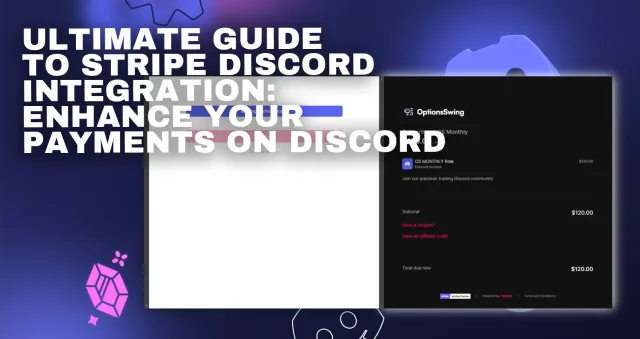
Every product gets its own branded checkout and signup page. That page is what your website will link to.
Step 3: Put the checkout on your website
You do not need a plugin or code. Add ordinary links or buttons that open the product’s checkout page:
- On your pricing page: one button per product, under a short description of what it includes.
- On your home page: one clear call to action near the top.
- In your navigation: a “Join” link that leads to the pricing page.
When a visitor clicks, they sign in with Discord through the signup gate, pay through Stripe and get the role straight away. They land in your server already in the right channels.
Test the whole journey
Before you announce anything, buy your own product:
- Open your website in a private browser window.
- Click the button, sign in with a second Discord account and pay with a real card.
- Check that the role appears and the paid channels are visible.
- Cancel the subscription and check that the role is removed when it ends.
- Refund yourself in Stripe.
Fixing a broken link costs a minute now and lost buyers later.
What happens after launch
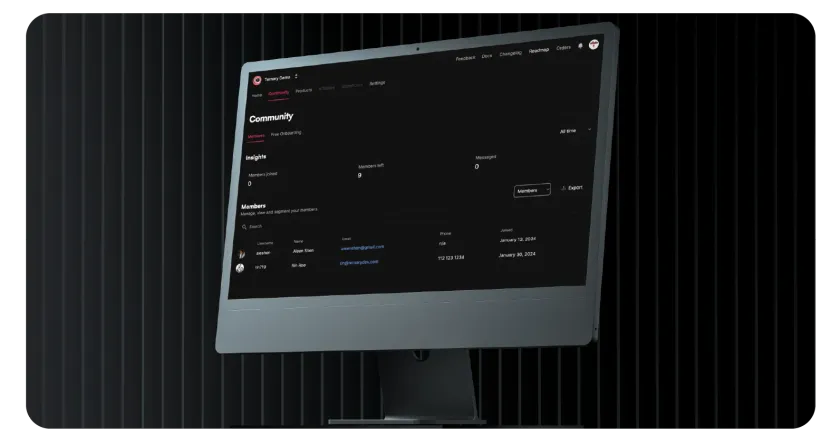
Renewals are charged by Stripe on schedule. When a subscription ends, Ternary removes the role. Each buyer appears in the member CRM with their Discord account and payment status, and the dashboards show sign-ups and revenue over time, so you can see which page or post drives sales.
Common website mistakes
- Linking the button to a server invite instead of the checkout. Visitors join the free side and never see the offer. Send the paid button to checkout, and keep the free invite as a smaller second link.
- Different prices in different places. Update the website whenever you change a product, or buyers feel misled at checkout.
- No path for current members. Tell existing members which button to use if they want to move to a higher plan.
Tips for a page that sells
- Lead with the outcome members get, not the list of channels.
- Show real screenshots of the community, with private details blurred.
- State the price and how to cancel plainly; hidden terms create refund requests.
- Answer the three questions people ask most, right next to the button.
Basic is free with no transaction fee; Premium is $100 a month plus a 3% transaction fee. For the full picture of how payment and access connect, read our pillar guide, Stripe Discord integration: how to connect payments.
FAQ
Do I need a developer to connect my website to Discord?
No. With a membership tool, your website only needs ordinary links or buttons that open each product's hosted checkout page. Any website builder can do that. You would need a developer only if you wanted to build the checkout, the Discord login and the role-assigning bot yourself, which most communities do not need to do.
Can I sell on my website and inside Discord at the same time?
Yes. The checkout link works anywhere: your website, a pinned message in a free Discord channel, your social profiles or an email. Every route ends at the same checkout page, so buyers get the same experience and the same role, and you see all sales in one dashboard instead of several.
What should my sales page say?
What members get, how often, and in which channels; the price and billing period; how to cancel; and a few honest answers to common questions. Screenshots of real channels, with private details blurred, show the value better than adjectives. Put the signup button near the top and again after the details.