How to Add Roles in Discord and Assign Them

Published · Updated · 3 min read
Short answer
To add a role in Discord, open Server Settings, choose Roles, press Create Role, name it, pick a color and permissions, and save. Assign it from the Members list or by clicking a member's profile and pressing the plus sign. New roles start at the bottom of the list, and members can only manage roles below their own.
| Where roles live | Server Settings > Roles > Create Role |
|---|---|
| Where new roles go | Bottom of the list, just above @everyone |
| Hierarchy rule | Members can only affect roles and users below their highest role |
| Name color shown | The color of the member's highest colored role |
| Channel vs server permissions | Channel permissions override server permissions |
Checked against the sources at the end of this article.
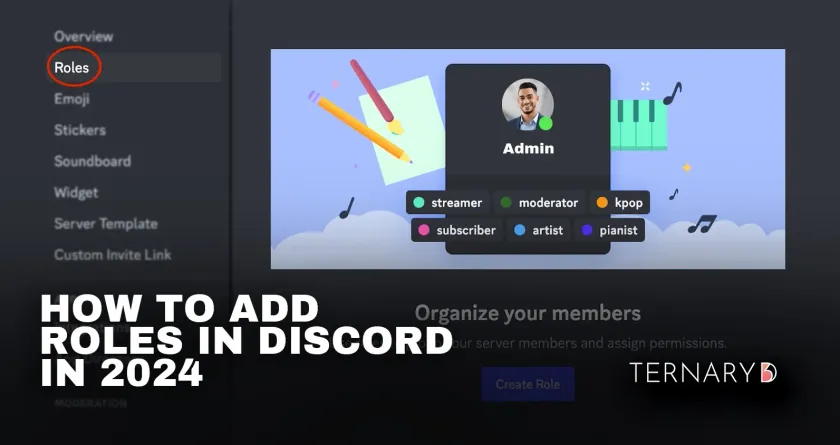
Roles are how Discord decides who can see and do what. A role carries a name, a color and a set of permissions, and every member can hold several. Get roles right and your server organizes itself: new members see the right channels, moderators have the tools they need, and paying members reach paid content. This pillar guide covers creating, assigning and automating roles. More guides are in our Discord onboarding, signup gate and roles topic.
How to create a role
- Open the menu next to your server name and choose Server Settings.
- Select Roles, then Create Role.
- Name the role after what it means, such as
Moderator,MemberorSupporter. - Choose a Role Color from the presets or the custom color picker. Members display the color of their highest colored role.
- Open the Permissions tab and switch on only what this role needs.
- Press Save Changes.
Every new role starts from the permissions of @everyone, the default role all members share, and is placed at the bottom of the list, just above @everyone.
How to assign a role
- From the member list: in the role’s settings, open Manage Members and add people.
- From a profile: click a member’s name or avatar, press the plus sign under their roles and pick the role.
The change applies immediately. To remove a role, open the same place and press the cross next to it.
Understand the hierarchy
Roles are ordered top to bottom, and the order matters:
- A member can only affect members and roles below their own highest role, even if they have the right permission.
- Members with Manage Roles can create and edit roles below their own, and can only grant permissions they hold themselves.
- Bots follow the same rule: a bot can only assign roles that sit below its own role.
Drag roles in Server Settings > Roles to reorder them. Put staff roles near the top, member and paid roles in the middle, and cosmetic roles at the bottom.
Set permissions safely
Give each role the smallest set of permissions that does the job. Administrator grants everything and skips every channel restriction, so keep it for very few people. Use channel permissions for fine control: they override server-wide permissions, which is how you create channels only one role can see.
Automate role assignment
Assigning every role by hand stops working quickly. Three ways to automate:
- Community Onboarding. On Community servers, new members answer questions you write, and each answer can assign channels and roles. It suits interest roles such as regions, games or topics.
- Role bots. Reaction or button menus let members pick self-service roles at any time.
- Paid roles. For roles people pay for, use a membership tool. Ternary signs buyers in with Discord through a signup gate, assigns the paid role on sign-up and removes it when the subscription ends, so nobody has to manage paid access by hand.
Common mistakes
- Generous
@everyonepermissions. Every new role starts from@everyone, so check it first and keep it minimal. - Too many roles. If nobody can explain what a role is for, delete it.
- A moderation bot above your staff roles. The bot can then act on your moderators. Keep staff above bots that moderate.
A starter role set
| Role | Purpose |
|---|---|
| Owner and Admin | Full control, two or three people |
| Moderator | Message management, timeouts, kicks |
| Bots | Below staff, above every role they assign |
| Member | Verified or paying members; opens member channels |
| Interest roles | Chosen in onboarding; open topic channels |
For paid communities, the next step is Ternary’s Discord bot for automated membership access. For the channel side, see how to customize a Discord server.
FAQ
Why can't I assign a role I just created?
Discord's hierarchy blocks it when the role sits at or above your own highest role, or above the bot you are using. Open Server Settings, Roles, and drag your role or the bot's role above the one you want to assign. Members with Manage Roles can only create, edit and assign roles that are below their own.
How do I give a role to many members at once?
Discord's own tools assign roles one member at a time, from the member list or a member's profile. For many members, let members pick roles themselves through Community Onboarding questions, use a role bot with a reaction or button menu, or, for paid roles, let your membership tool assign the role when each person pays.
Should moderators have the Administrator permission?
Usually not. Administrator grants every permission and bypasses all channel restrictions, so a compromised moderator account can do anything. Give moderators the specific permissions they need, such as managing messages, timing out members and kicking, and keep Administrator for the owner and one or two trusted people.